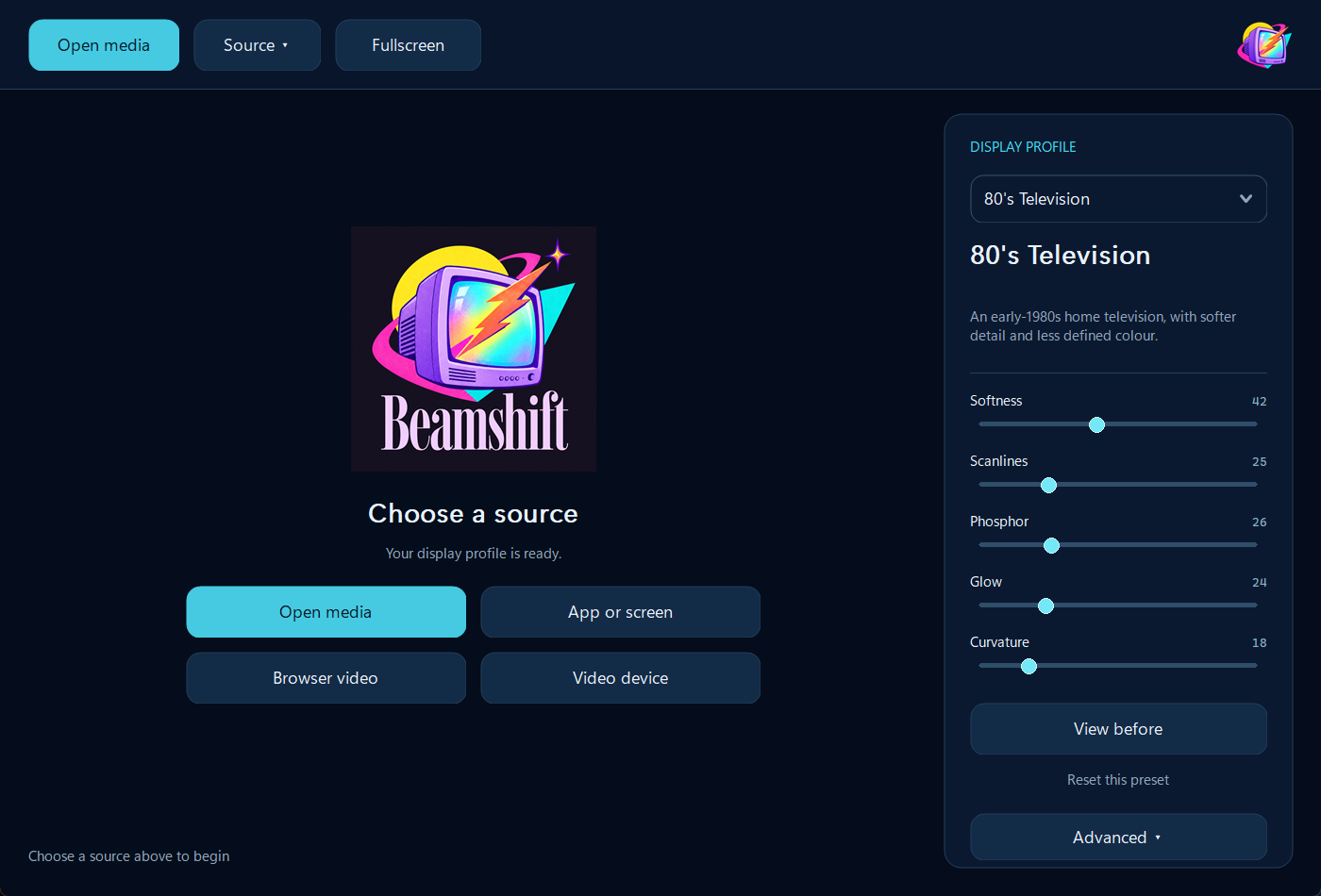
Local video first. Chrome and Edge support is experimental.
CHOOSE THE DISPLAY YOU WANT TO RECREATE.
CRT display character✦VHS texture & wear✦Your videos, your settings✦Built for Windows
01 / THE PICTURE
Familiar footage. A different feeling.
See what changes in the picture. These are recordings from Beamshift, with no simulated website filter.
Real Beamshift recording
One clip. Bypass, then 80’s Television.
33-second silent comparison captured on 8 October. Watch for softer detail, the scanline texture and the curved edges. This recording uses an earlier version of the interface.
Browser setup currently takes a few steps. Here’s what to expect at each one.
The same two-stage setup. Choose your browser.
Based on the 9 October build. App images are real captures; picker panels below are labelled illustrations, pending a complete Windows screenshot walkthrough. Browser wording can vary.
Actual app · 8 Oct
01
Start with a dedicated video window.
Open your video in its own Chrome window and press play. Keep your other browsing in a separate window. In Beamshift, choose Source → Browser Video → Google Chrome….
Beamshift — Browser Video
BEAMSHIFT / BROWSER VIDEO
Choose your browser video
Keep your video in a dedicated browser window.
Choose browser video ↗● Waiting for a video tab
Helper illustration
02
Open the tab picker.
Beamshift opens a helper page in a separate Chrome window. Click Choose browser video. Keep the helper page open during the session.
Choose what to share
Chrome tabWindowEntire screen
▷Your video tab The page playing your video✓
CancelShare
Picker illustration
03
Select the video tab and share it.
In Chrome’s sharing dialog, choose the browser tab playing your video and confirm sharing. Don’t select the helper, a window or the entire screen at this stage.
Back in BeamshiftAlt + Tab
Choose the window showing your video▷ Your video — Google Chrome✓Select the dedicated video window
Window-choice illustration
04
Return to Beamshift to finish.
Switch back using the taskbar or Alt + Tab. If Beamshift asks, select the window showing that same video. With only one candidate window, this step may happen automatically. If setup is waiting, use Finish setup….
↗
Then watch in Beamshift.
Keep the video tab active in its browser window, and leave that window unminimized. Beamshift can be in front. Choose a display profile, use View before to compare, and F11 for Beamshift fullscreen. Browser playback and sound stay controlled by the browser.
IF THE PICTURE STOPS
Get back to your video.
A held picture can mean the video tab is no longer available. Try these steps in order.
Return to the video tab.
Restore its browser window, select the video tab and check that playback is running. Then return to Beamshift, leaving that window unminimized.
Retry the connection.
In Beamshift, choose Source → Browser Video → Retry connection…. If setup is incomplete, use Finish setup….
Choose the source again.
Use Source → Browser Video → Change Video Source… and repeat tab selection. Show Source Picker reopens the helper. Select the video window if prompted.
Still stuck? Record what happened.
Check Source → Browser Video → Connection Status…. Note your browser, the action just before the freeze and whether Retry helped. You can continue testing with a local video.
04 / WHERE THE BETA STANDS
A work in progress. With the rough edges visible.
We want useful feedback from real viewing. Here’s what you should know first.
↗
Browser connection needs refinement.
Switching tabs, minimizing the source window or changing the player’s fullscreen state can interrupt the picture. Initial connection and automatic framing may need another attempt.
◷
Controls stay with the source.
For browser video, pause, seek and adjust sound in the browser. This beta does not offer a fully integrated browser player. Use Beamshift’s own fullscreen control for the viewing window.
▦
Compatibility is still being tested.
Windows 11, 64-bit and Direct3D 11 graphics are the current target. Other PCs, codecs and browser players need testing. Protected streaming services are outside this beta’s supported scope.
≈
Display character, with limits.
Beamshift explores CRT and VHS appearance. It is not a calibrated match to every historical television, and cannot restore detail already lost in the source.
HELP SHAPE BEAMSHIFT
Bring your videos. Tell us how it feels.
Join the Windows beta interest list. We’re looking for people who enjoy retro video, digitised home movies and the character of older displays.
01Try a 20–40 minute session with a local video.
02Compare a profile with bypass, and check playback, audio and fullscreen.
03Optionally try Chrome or Edge and tell us where setup gets awkward.
04Tell us whether you want to watch with Beamshift again.
Registration is an expression of interest, not an immediate download. Build access and feedback timing will be arranged individually.